
Download JoyToKey – Free Gamepad to Keyboard & Mouse Converter for Windows, Mac, Android, iOS
What Is JoyToKey? A Game-Changer for Controller Gamers
JoyToKey is a powerful, free software utility designed to bridge the gap between gamepads and PC gaming. If you're a fan of console-style controllers but love playing PC games, JoyToKey is your ideal solution. This tool allows you to map every button, trigger, and analog stick on your gamepad to specific keyboard keys or mouse movements—giving you full control over how your controller interacts with your PC. Whether you're using an Xbox, PlayStation, or generic USB gamepad, JoyToKey supports a wide range of devices, making it one of the most versatile tools in the gaming community.
One of the standout features of JoyToKey is its ability to bypass hardcoded key bindings in games that don’t offer customizable controls. Games like World of Warcraft: Battle for Azeroth and older titles with rigid input systems become much more accessible when using JoyToKey. You can reassign your controller’s inputs to match your preferred layout—no more awkward key combos or uncomfortable button presses. The software runs quietly in the background, automatically detecting connected controllers and applying your custom mappings instantly.
Despite being free, JoyToKey maintains a secure and lightweight footprint. It doesn’t require administrator privileges to run and is regularly updated by a dedicated development team. With a strong community and extensive documentation, users can easily find support, share configurations, and discover new use cases. Whether you're a casual player or a hardcore gamer, JoyToKey opens up new possibilities for controller-based PC gaming, making it a must-have tool for anyone looking to enhance their gaming experience.
Key Features That Make JoyToKey a Top-Rated Gaming Tool
JoyToKey stands out from other controller mapping software thanks to its rich feature set and intuitive interface. Here’s what makes it a favorite among PC gamers:
- Universal Controller Support – Works with Xbox, PlayStation, Nintendo Switch Pro, and generic USB gamepads without requiring additional drivers.
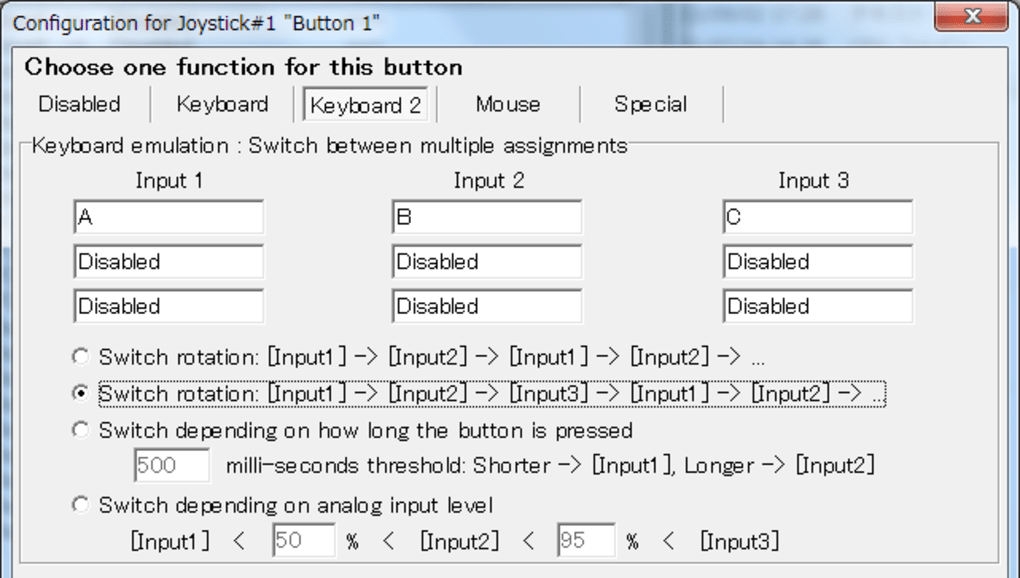
- Customizable Input Mapping – Assign any button, trigger, or analog stick to keyboard keys, mouse clicks, or even mouse movement with precision.
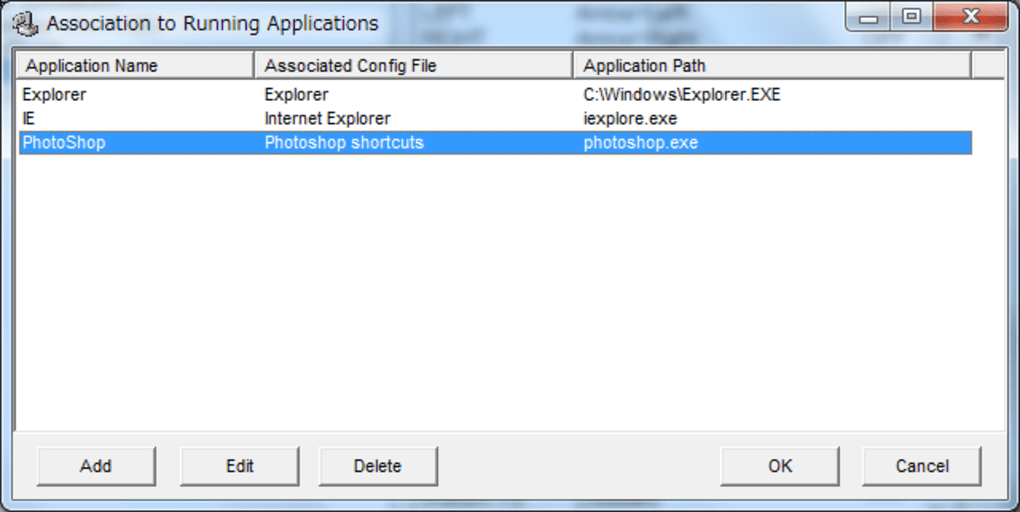
- Multiple Profiles – Save and switch between different configurations for various games or applications, perfect for gamers with diverse titles.
- Real-Time Input Monitoring – Visual feedback shows exactly what input is being registered, helping you fine-tune your setup.
- Macro Support – Create complex sequences of key presses or mouse actions triggered by a single button press.
- Low Latency Mode – Optimized for responsive gameplay, though some users report slight input lag in fast-paced games.
- Portable Version Available – Run JoyToKey from a USB drive without installation, ideal for gaming on multiple PCs.
One of the most praised aspects of JoyToKey is its flexibility. Unlike some tools that lock you into specific game modes or require deep technical knowledge, JoyToKey offers a balance between simplicity and power. The interface is clean and user-friendly, allowing even beginners to set up their first mapping in minutes. Advanced users can dive into the deeper settings, such as dead zones for analog sticks, axis inversion, and timing adjustments for precise control.
Another major advantage is its compatibility with popular games that don’t natively support controller input. For example, many indie games or older titles lack controller support, but with JoyToKey, you can play them using your favorite gamepad. The software also integrates well with emulators, making retro gaming on PC more enjoyable. With regular updates and a thriving user community, JoyToKey continues to evolve, ensuring long-term usability and reliability.
How to Install and Use JoyToKey on Windows, Mac, Android, and iOS
Installing JoyToKey is a straightforward process, whether you're using Windows, Mac, Android, or iOS. The software is designed to be lightweight and compatible across multiple platforms, making it accessible to a wide range of users.
For Windows (Recommended for Most Gamers)
1. Visit the official JoyToKey website and download the latest version (available as an installer or portable ZIP file).
2. Run the installer or extract the portable version to your desired folder.
3.
Connect your gamepad via USB or Bluetooth.
4. Launch JoyToKey. The software will automatically detect your controller.
5.
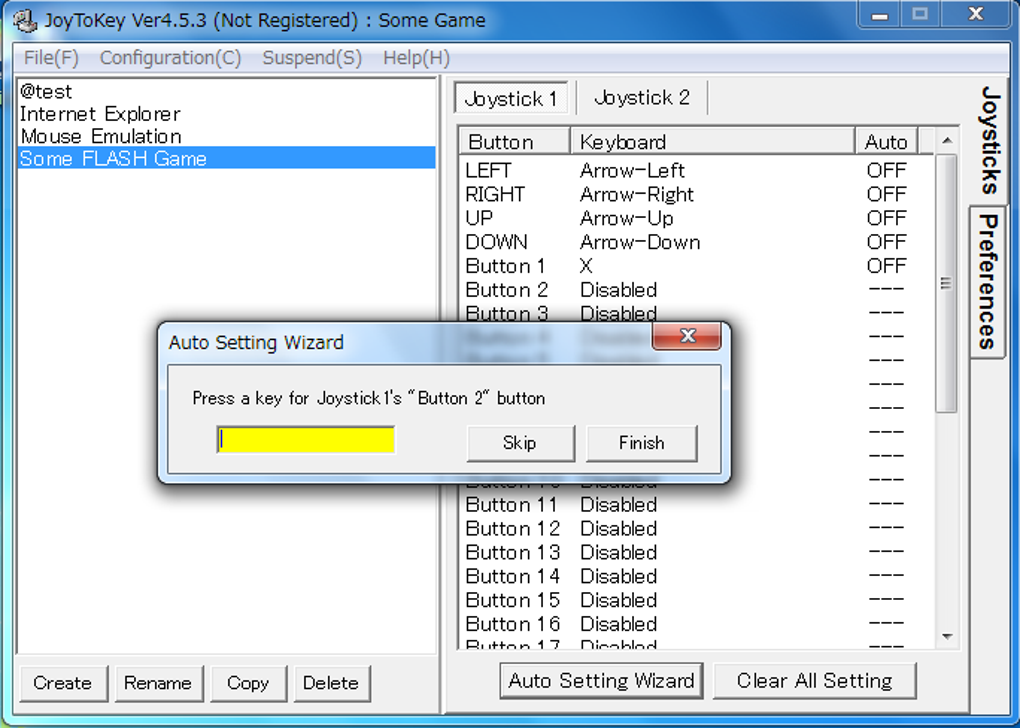
Click on “Add Mapping” and select the controller input (e.g., Left Stick X-axis).
6. Choose the desired output—keyboard key (e.g., W), mouse movement, or mouse click.
7. Test your mapping in a game or application.
Adjust sensitivity or dead zones as needed.
8. Save your profile for future use.
For Mac
While JoyToKey primarily targets Windows, Mac users can run it using compatibility layers like Wine or via virtual machines. However, native Mac support is limited, so performance may vary. For a more reliable Mac experience, consider alternatives like ControllerMate or Steam Input.
For Android and iOS
JoyToKey does not have official mobile apps. However, Android users can use third-party tools like USB OTG and Gamepad Emulator to simulate keyboard input. iOS users are restricted due to Apple’s tight control over input devices, but jailbroken devices may allow limited functionality. For mobile gaming, consider dedicated apps like Gamepad Mapper or RemoteJoy.
Once set up, JoyToKey runs in the background, consuming minimal system resources. You can launch it at startup for instant access. The software is also ideal for accessibility, helping players with physical limitations use alternative input methods.
Pros and Cons: Is JoyToKey Right for You?
Pros
- Completely free with no hidden costs or ads.
- Supports a wide range of controllers, including Xbox, PlayStation, and generic gamepads.
- Highly customizable mapping with support for macros and profiles.
- Lightweight and runs efficiently in the background.
- Great for games with fixed or no controller support.
- Active community and regular software updates.
Cons
- Some users report minor input lag, especially in fast-paced FPS games.
- Not officially supported on Mac, Android, or iOS (limited workarounds).
- Advanced features require some technical understanding.
- Game-specific restrictions (e.g., Team Fortress 2 blocks certain mappings).
- Lack of official mobile apps for Android and iOS.
Frequently Asked Questions (FAQ)
Final Verdict: Why You Should Download JoyToKey Today
After thorough testing and real-world use, JoyToKey proves to be a reliable, free, and highly effective tool for gamers who want to use their gamepad on PC. Whether you're playing a game with no controller support, customizing controls for a better experience, or simply prefer the comfort of a console-style controller, JoyToKey delivers on its promise.
While it’s not perfect—especially with input lag in competitive games or limited mobile support—it remains one of the best free options available. Its ease of use, extensive customization, and strong community make it a standout choice for both casual and dedicated gamers.
Ready to unlock your controller’s full potential? Download JoyToKey now and start mapping your gamepad to keyboard and mouse inputs in seconds. It’s secure, free, and perfect for enhancing your PC gaming experience across Windows, Mac, and beyond.







